Development & data cleanup
playhtml ships with a built-in development mode: an in-page devtools panel for debugging your collaborative elements while you’re building. Turn it on while developing, and remember to turn it off before you deploy.
The panel lets you:
- See the data stored for every element: a live tree of synced state that updates as you and others interact.
- Find the active elements on the page: each row maps to an element, and hovering it highlights where that element lives.
- Reset data: restore one element (or all of them) to its defaults when you want a clean slate.
- Watch the console: playhtml’s logs, mirrored in a tab so you don’t have to dig through the browser console.
- Check the connection: the current room, host, and how many readers and elements are live.
Development mode
Section titled “Development mode”Pass developmentMode: true to mount the panel.
playhtml.init({ developmentMode: true });<PlayProvider initOptions={{ developmentMode: true }}>
{/* your app */}
</PlayProvider>The panel docks to the side of the page, with a Data tab (the element tree) and a Console tab (playhtml’s logs).
Each row in the Data tab is one element. Expand it to see its live data tree, and hover the element on the page to highlight where it lives. The badge shows which capability owns the data (can-mirror, can-move, …).
Resetting data
Section titled “Resetting data”State persists per room, so a value you set while testing stays until you reset it. The devtools panel gives you two ways to do that.
Reset one element. Hover a row in the Data tab and click reset. It restores that element to its defaultData (a moved element snaps back to its origin, a toggle to off). The change syncs to everyone in the room, same as any other update.
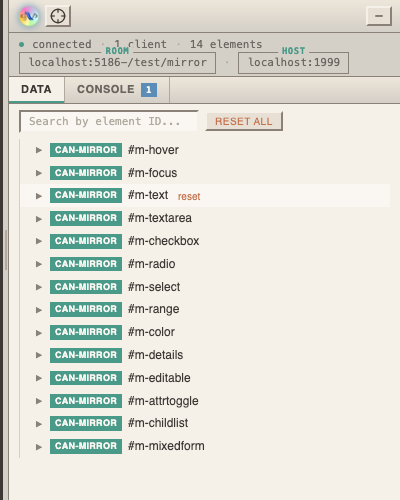
Reset everything. Reset All, at the top of the panel, restores every element on the page to its defaults at once.
Readers can also reset the built-in interactive capabilities themselves by shift-clicking an element, which is handy for “clear the board” affordances you want to expose in your own UI.
Starting fresh
Section titled “Starting fresh”To wipe state without resetting elements one by one, point your app at a new room: change the room option to a string you haven’t used before. The new room starts empty; the old one is untouched, so you can switch back. This is the quickest way to get a clean slate while iterating on a layout.